







Universal Expert Advisor (EA) for MetaTrader with Extensive Functionality The Expert Advisor The X is a versatile trading tool for MetaTrader,…

Averager. Averaging trading positions. Opening deals against the trend and on the trend!

The X – Universal Expert Advisor (EA) for Forex Using Standard Indicators

Main
Documentation
Settings
FAQ
Changelog
Reviews
Comments
Extra
About the Assistant
Automatic Settings for Stop Loss, Take Profit, Trailing Stop, Breakeven, and Virtual Stops
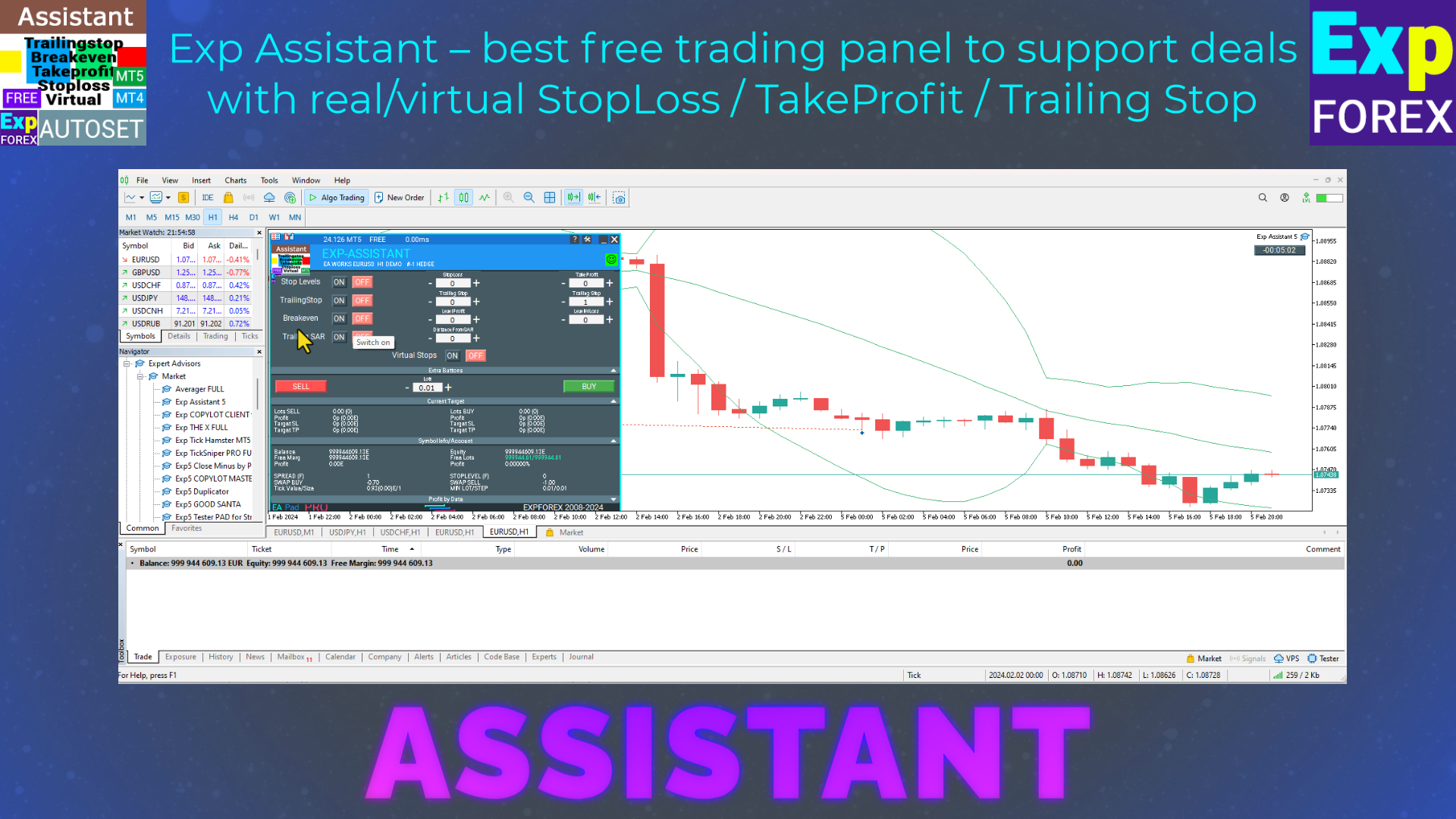
The Exp Assistant is designed to help you efficiently manage your open positions.
This Expert Advisor automatically applies all necessary stop loss, take profit, trailing stop, and breakeven levels to your trades.
You also have the option to enable virtual stops for enhanced control.
All functions of the Expert Advisor are accessible through a convenient control panel displayed directly on the chart.
If you have open positions, but your current EA cannot handle placing stop loss, take profit, trailing stop, or breakeven—or if you trade manually—the Exp Assistant is here to support you.
It automatically manages these essential features for your trades.
Additionally, it includes a trailing stop function based on the Parabolic SAR indicator, ensuring dynamic trade management when necessary.
How does Assistant work?



What do people write about Assistant ?

pasroc1
Very Good Free Ea for Trade Management, It is absolutely needed for safe trading.
Moeen Ghiyas
Awesome ... The best tool in the market to execute trade. 1-click MT5 buttons also linked with tool to implement auto trail and stop levels etc.serg lit
Просто БОМБА, очень долго искал такого советника. Да ещё он бесплатный. Масса функций, все полезные. С ним моя торговля стала намного быстрее и удобнее. Спасибо автору!aph.andy
Thank you very much! Love the EA!6566599
I love it! You no need to think to much..if that trade go mistake you just put SL 😉FF21 Winnie
Definitely recommended for those who want easy, simple to use, no need to think too much on how to use. Thank you.Maggie Lau
awesome! it's a masterpiece! thank you!Damith Woods
Hello Vladislav thank you so much for putting this together works fantastic and was exactly what i needed. thanks againmowglii Very nice and helpfull tool.
Really very good... it changed the way things work.
Reply from ExpForex:
Thank youQuelle joie d'avoir trouvé votre indicateur, gratuit en plus ! Très utile pour moi, je renseigne les paramètres selon le contexte de marché et ça roule... un gain de temps appréciable, un suivi millimétré qui rend mon trading plus efficient, top. Merci
Carlo Alberto Excellent!
so far its doing an excellent job on my trading journey!

Rik672001 This trade manager works well for my manual trading, Thankyou for making it free.
traderspeed
)brigado pelo assistente gratis. muito bm.
You can Download free Assistant
FULL for FREE!
This is FULL FREE version without limits!
You can download and install our program for free!
Want One-Click Trading? Execute Faster and Trade Smarter!

VirtualTradePad (VTP) Trading Panel. Trade Pad for One Click Traiding from Chart and Keyboard
VirtualTradePad or VTP – control panel for trade in 1 click in MetaTrader 4 and 5. Trade in 1 click from the terminal graph. Trade with the keyboard. The program for scalping and manual trading on Forex. VirtualTradePad have more then 30 buttons: buy, sell, buystop, buylimit, sellstop, selllimit, close, delete, modify, trailing stop, reverse, lock, Grid, VirtualStops, Profit/ loss total close and more…..
Links
Automatic installation of Real / Virtual stop loss / take profit / trailing stop: FREE
Table of Contents (click to show)
Description
Exp Assistant is the expert assistant for MetaTrader 4 and MetaTrader 5 that you’ve been searching for.
Our Exp Assistant efficiently manages your positions (deals) and automates essential trading functions, making it an indispensable tool for traders aiming to enhance their trading effectiveness.
With the Exp Assistant Utility, you can automatically set Stop Loss, Take Profit, Trailing Stop, Breakeven, and Virtual Stops for your positions, ensuring you maintain full control over your trades.
If your Expert Advisor cannot set Stop Loss, Take Profit, Trailing Stop, or Breakeven, or if you prefer to trade manually, the Exp Assistant is here to help. It will automatically place Stop Loss and Take Profit orders, activate Trailing Stop, or move Stop Loss to Breakeven as needed.
Additionally, the assistant can activate Trailing Stop based on the Parabolic SAR indicator. Manage all these operations from the convenient control panel on the chart, giving you complete control over your trading strategy.
Key Features of Exp Assistant:
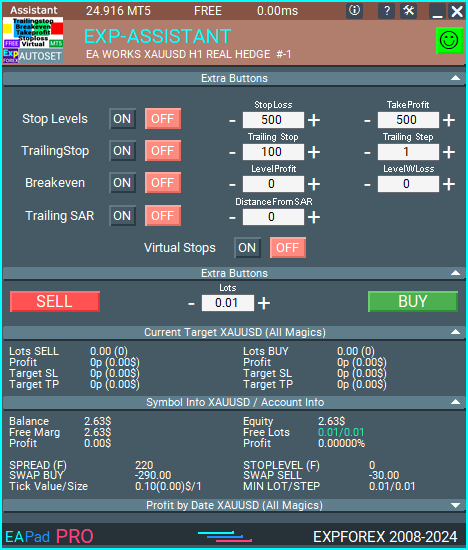
Detailed Account Information at a glance: View comprehensive and useful account details instantly.
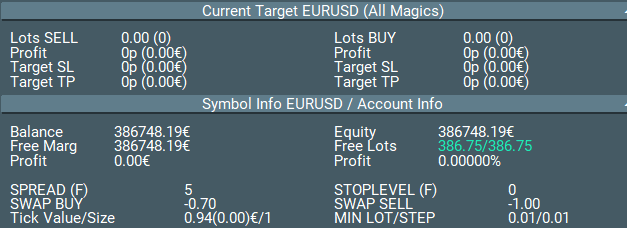
Easily Open BUY and SELL Orders: Quickly and conveniently open buy and sell positions.

Automatic Stop Loss and Take Profit Levels: Protect your trades with automatically set stop loss and take profit levels.
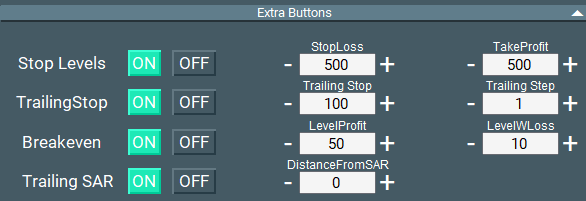
Activate Trailing Stop for enhanced trade management: Maximize profits and minimize risks with trailing stops.
Auto Move Stop Loss to Breakeven: Secure your positions by automatically moving stop loss to breakeven.
Trailing Stop Based on Parabolic SAR Indicator: Utilize a dynamic trailing stop based on the Parabolic SAR indicator for effective trade management.
Manage Virtual Stop Loss and Take Profit for discreet trades: Use virtual stop loss and take profit levels for a more concealed approach.

Enable Virtual Trailing Stop and Breakeven for better control: Gain precision over trades with virtual trailing stops and breakeven levels.
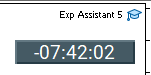
Display the End Time of the Current Bar directly on the chart: See the end time of the current candle for enhanced analysis.
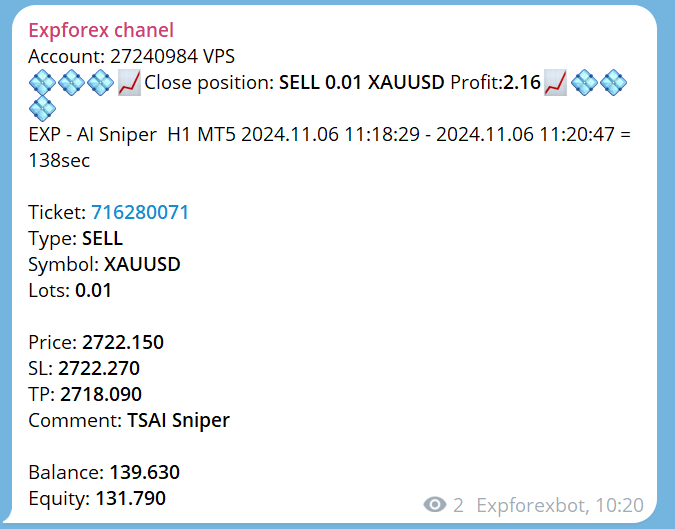
Notifications to Phone, Email, and Telegram: Stay informed with notifications sent to your phone, email, and Telegram. Working with Telegram in MetaTrader. Telegram channels and bot
Closed Position Statistics on the Currency Pair Chart: View closed position stats directly on the chart, including profit in deposit currency and pips.
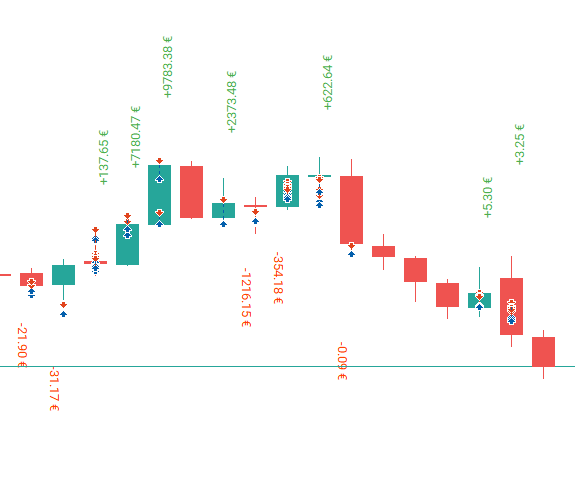
Information on Current Open Positions: Access real-time details on all open positions for effective portfolio management.
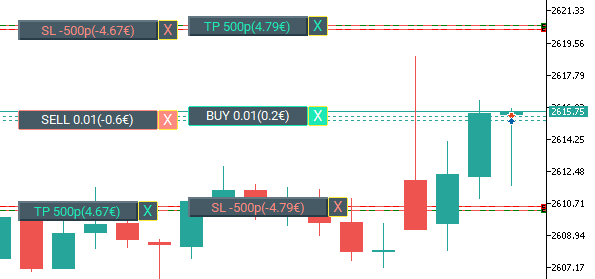
Example of Using the Assistant

You can read about the main blocks of our EAPADPRO panel in our blog: EAPADPRO.
Control Assistant
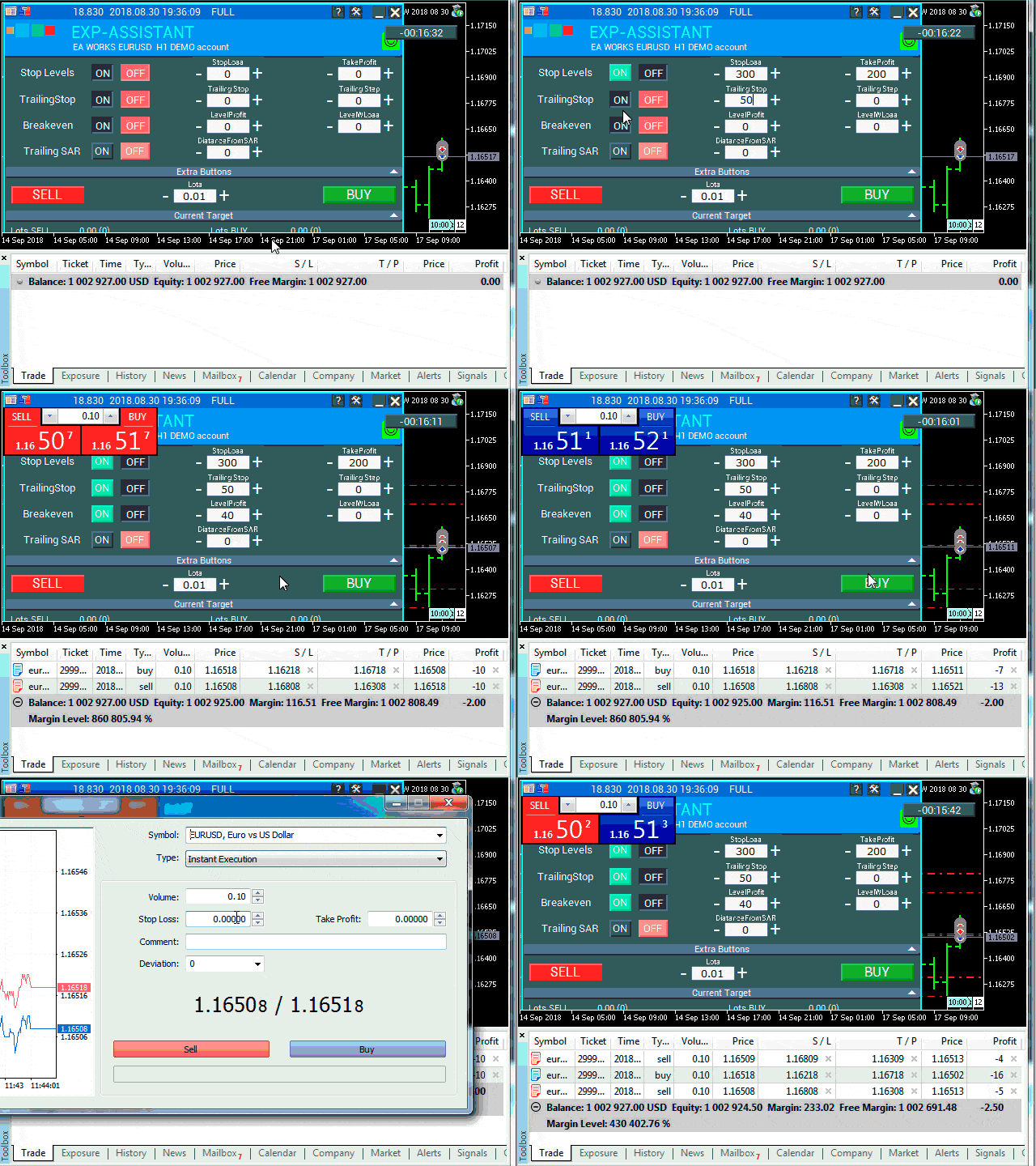
Adjust the levels for Stop Loss and Take Profit, the level and step for Trailing Stop, the level and distance for Breakeven, and the distance for trailing based on the Parabolic SAR indicator.
To activate the assistant, simply click the corresponding button.
When you change the settings in the panel, the new parameters take effect immediately, and the Expert Advisor modifies the positions (deals) accordingly.

Stop Loss / Take Profit
Stop Loss (0 …) in Points (Pips)

This parameter represents the Stop Loss for each position (deal). It specifies the number of negative points (pips) at which the server will close the deal.
0 – the parameter is disabled, and the Stop Loss for the deal will be 0.
Take Profit (0 …) in Points (Pips)
This parameter represents the Take Profit for each position (deal). It specifies the number of positive points (pips) at which the server will close the deal.
0 – the setting is disabled, and the Take Profit for the deal will be 0.
Note: This parameter must be set to at least the minimum allowed stop on your server.
If the parameter is less than the server’s minimum allowed stop, the Expert Advisor will report an error (130).
Classic Trailing Stop
Trailing Stop (in Points/Pips) & Trailing Step (in Points/Pips)

These options allow automatic tracking of positions (deals) by modifying the Stop Loss to the profit zone.
ProfitTrailing – When set to true, the Expert Advisor starts modifying only after the position (deal) reaches breakeven.
When set to false, the trailing stop starts immediately after positioning and follows the price.
StartTralPoint – The starting point for the trailing stop in points (pips). For example, set to 10 – when the position (deal) gains 10 points, the trailing stop algorithm begins to tighten the stop loss.
TrailingStop – The distance in points (pips) from the current price to the Stop Loss. This parameter cannot be less than the minimum allowed by your server.
TrailingStep – The step size for modifying the Stop Loss. For example, the Stop Loss will be adjusted every TrailingStep points to maintain a distance of TrailingStop points from the current price.
BREAKEVEN: Installing Stop Loss at Breakeven
BreakEven (true/false), LevelProfit (in Points/Pips), LevelWLoss (in Points/Pips)

These parameters control the modification of the trade to breakeven at the earliest opportunity.
For example:
If you want to set a Stop Loss to breakeven when the trade gains +10 points (pips):
BreakEven = true;
LevelProfit = 10;
LevelWLoss = 0;
If you want to set a Stop Loss of +5 points (pips) when the trade gains +20 points (pips):
BreakEven = true;
LevelProfit = 20;
LevelWLoss = 5;
The difference between LevelWLoss and LevelProfit should always be greater than or equal to the minimum stop level on the server.
Trailing Stop by PARABOLIC SAR
TrailingStopSAR (true/false), Distance in Points (Pips).

These parameters allow the modification of Stop Loss based on the Parabolic SAR indicator. The Stop Loss will be adjusted at each new value of the Parabolic SAR plus the specified distance in points (pips).
For BUY positions, the Stop Loss is modified when the Parabolic SAR is below the price.
For SELL positions, the Stop Loss is modified when the Parabolic SAR is above the price.
Includes settings for step and maximum (Parabolic SAR Parameters).
Virtual Stop Loss / Take Profit / Trailing Stop / Breakeven

Real Stop Loss and Real Take Profit

Virtual Stop Loss and Virtual Take Profit

Manage both Virtual and Real Stop Loss / Take Profit levels directly from the Assistant control panel!
The VirtualStops (VirtualSLTP) parameter is displayed on the chart within the control panel.
You can enable or disable the Virtual Stop Loss, Take Profit, Trailing Stop, and Breakeven functions directly from the control panel.
Operate seamlessly with Virtual Stop Loss, Take Profit, Trailing Stop, and Breakeven.
—— Full functionality with Virtual Stop Loss and Take Profit levels. Turn on or off as needed.
——– All levels will be virtual and displayed on the chart as lines.
——– Attention! Virtual closing of positions (deals) means that when the price crosses the virtual Stop Loss or Take Profit line, the assistant sends a command to close the position on the server.
——– There may be slippage or delays due to broker requotes and other factors.
——– Attention! Works only when the computer is on and the terminal is connected.
——– Attention! In MT4, virtual levels work with both positions (deals) and orders.
——– Attention! In MT5, virtual levels work only with positions (deals).
Pending and limit orders will use real Stop Loss and Take Profit levels.
——– Attention! There may be slippage when closing positions (deals).
Dependent on broker requotes and delays!!!
———- Attention! When you click the “On/Off” button, the assistant modifies all Stop Loss and Take Profit levels to virtual or real levels.
During modification, there may be broker restrictions on the minimum Stop level, preventing the assistant from modifying some Stop Loss and Take Profit levels.
Settings of Assistant
| Parameter | Description |
|---|---|
| TypeFilling | Fill type for positions (deals) and orders. Applicable for MetaTrader 5 only. In AUTO mode: The assistant automatically determines the fill type. However, in some situations, you may need to manually set the desired fill type. When opening a position (deal), you might encounter an error. Error 10030 TRADE_RETCODE_INVALID_FILL Unsupported type of order execution on the balance. Set the fill type according to your broker’s specifications. EXAMPLE: FillOrKill This policy ensures that the order is executed only for the specified volume. If the market does not currently have sufficient instruments, the order will not be executed. The required volume can consist of several proposals currently available in the market. ImmediateOrCancel This allows executing deals up to the maximum available volume in the specified range. If full execution isn’t possible, the order will execute partially up to the available capacity, and the remaining amount will be canceled. Return This mode is used for market, limit, and stop-limit orders, and only in “Market Execution” and “Exchange Execution” modes. In the event of partial execution of a market or limit order, the residual volume remains active. For stop-limit orders, activating the corresponding limit order creates execution with a Return type. |
| RoundingDigits | The number of decimal places for modifying positions (deals). Options: – No rounding; – Round to 1 digit; – Round to 2 digits. |
| VirtualStops | Enable the functions of virtual stops (Stop Loss, Take Profit, Trailing Stop, Breakeven). |
| TypeofPositions | Type of position monitoring: – All positions; – Only BUY; – Only SELL. |
| MagicOrders | The magic numbers of positions (deals) to monitor. You can specify multiple magic numbers separated by commas. For example: 12345,777,20171025. |
| STEP_ | Set the step in the EDIT field using the + and – keys. STEP_StopLoss = 0; // Change step for Stop Loss STEP_TakeProfit = 0; // Change step for Take Profit STEP_TrailingStop = 0; // Change step for Trailing Stop STEP_TrailingStep = 0; // Change step for Trailing Step STEP_LevelProfit = 0; // Change step for Level Profit STEP_LevelWLoss = 0; // Change step for Level WLoss STEP_DistanceFromSar = 0; // Change step for Distance From SAR |
| SetSLTPonlytoZEROprices | Set Stop Loss and Take Profit only when their current values are 0. |
| ProfitTrailing | If true, the assistant starts modifying only after the position moves to breakeven. If false, the Trailing Stop activates immediately after placing the position and follows the price, only if the position is profitable (>0). Attention! If you set ProfitTrailing to false and have a non-zero Stop Loss, enable SetSLTPonlytoZEROprices to prevent conflicts between negative Trailing Stop and Stop Loss. |
| StartTrailingPoint | Starting point of the Trailing Stop function, in points. For example, setting a value of 10 means that when the deal gains 10 points, the Trailing Stop algorithm begins to work. |
FAQ Question Answer about Assistant

Our General FAQ
FAQ Answers to the most popular questions
Why is the Stop Loss/Take Profit constantly changing when setting Stop Loss/Take Profit on a position?
The most likely reason is that you’ve set the Stop Loss and Take Profit levels below the minimum required by your server.
If the Stop Level is constantly changing (due to a floating spread), and the Stop Loss distance is determined automatically to be more than the minimum Stop Level, it will keep adjusting continuously.
Are the parameter values in points or pips?
The values are in points! The value is derived from the Point variable.
- If you have a 5 or 3-digit broker, then 1 point = 0.00001 or 0.001 respectively.
- If you have a 4 or 2-digit broker, then 1 point = 0.0001 or 0.01 respectively.
Automatic installation of Real/Virtual Stop Loss, Take Profit, and Trailing Stop: FREE
How can I ensure that the Exp Assistant works correctly with my broker?
To ensure Exp Assistant works correctly with your broker, make sure to:
- Verify that your broker supports the required Stop Loss and Take Profit levels.
- Ensure your broker’s minimum Stop Level is configured correctly in the settings.
- Check that your trading terminal is always connected and running.
- Contact your broker’s support if you encounter any issues related to Stop Loss or Take Profit settings.
Can I use Exp Assistant with multiple accounts?
Yes, you can use Exp Assistant with multiple accounts by specifying different MagicNumbers for each account. This allows the assistant to monitor and manage positions across various accounts independently.
Is Exp Assistant compatible with both MetaTrader 4 and MetaTrader 5?
Absolutely! Exp Assistant is fully compatible with both MetaTrader 4 and MetaTrader 5, providing seamless functionality across both platforms.
How do I install Exp Assistant?
To install Exp Assistant, follow these steps:
How to install Expert Advisor and indicators to the MetaTrader terminals
- Download the Exp Assistant file from our website.
- Open your MetaTrader platform.
- Go to File > Open Data Folder.
- Navigate to the MQL4 or MQL5 folder, depending on your platform.
- Copy the downloaded Exp Assistant file into the Experts folder.
- Restart your MetaTrader platform.
- Attach the Exp Assistant to your chart and configure the settings as needed.
If you encounter any issues during installation, please
What is Exp Assistant?
Exp Assistant is an expert assistant for MetaTrader 4 and MetaTrader 5 that efficiently manages your positions and automates essential trading functions, enhancing trading effectiveness.
How does Exp Assistant manage trading positions?
Exp Assistant automatically sets Stop Loss, Take Profit, Trailing Stop, Breakeven, and Virtual Stops for your positions, ensuring you maintain full control over your trades.
What should I do if my Expert Advisor cannot set Stop Loss or Take Profit?
Exp Assistant will automatically place Stop Loss and Take Profit orders, activate Trailing Stop, or move Stop Loss to Breakeven as needed.
On which indicator is the Trailing Stop based in Exp Assistant?
The Trailing Stop in Exp Assistant is based on the Parabolic SAR indicator.
What are the key features of Exp Assistant?
Key features include detailed account information, easy opening of BUY and SELL orders, automatic Stop Loss and Take Profit levels, Trailing Stop, Breakeven, management of Virtual Stop Loss and Take Profit, notifications, and closed position statistics.
How does Exp Assistant display account information?
Exp Assistant provides detailed account information at a glance, allowing you to view all essential account details instantly.
How can I open BUY or SELL orders using Exp Assistant?
You can quickly and conveniently open BUY and SELL positions through the user-friendly control panel on the chart.
What is the function of Auto Move Stop Loss to Breakeven?
This function automatically moves the Stop Loss to the Breakeven level, protecting your positions from losses.
Which notification channels does Exp Assistant support?
Exp Assistant sends notifications to your phone, email, and Telegram.
How does Exp Assistant display closed position statistics?
Closed position statistics are displayed directly on the currency pair chart, including profit in deposit currency and pips.
Can Exp Assistant manage virtual Stop Loss and Take Profit levels?
Yes, Exp Assistant allows you to manage both Virtual Stop Loss and Virtual Take Profit directly from the control panel.
What are Virtual Trailing Stop and Virtual Breakeven?
These are virtual levels for Trailing Stop and Breakeven that provide more precise control over trades and are displayed on the chart as lines.
How do I activate Exp Assistant?
To activate Exp Assistant, simply click the corresponding button on the control panel.
What happens when I change settings in the Exp Assistant panel?
New parameters take effect immediately, and the Expert Advisor modifies the positions accordingly.
How are Stop Loss and Take Profit parameters set in Exp Assistant?
Stop Loss and Take Profit are set in points (pips), and their values must meet the minimum requirements set by your server.
What is Classic Trailing Stop in Exp Assistant?
Classic Trailing Stop allows automatic tracking of positions by modifying the Stop Loss into the profit zone based on defined parameters.
How does Breakeven work in Exp Assistant?
Breakeven moves the Stop Loss to the entry level once the trade reaches a specified profit, securing the position against losses.
What parameters are used to set up Trailing Stop based on Parabolic SAR?
Parameters include TrailingStopSAR (enable/disable) and Distance in points (pips), along with step and maximum settings for the Parabolic SAR.
How does Exp Assistant handle Virtual Stop Loss in MT4 and MT5?
In MT4, virtual levels work with both positions and orders, while in MT5, they work only with positions.
What occurs during virtual closing of positions?
When the price crosses the virtual Stop Loss or Take Profit line, Exp Assistant sends a command to close the position on the server, which may involve slippage or delays.
Can Exp Assistant manage pending and limit orders?
Yes, pending and limit orders use real Stop Loss and Take Profit levels.
What notifications can I receive via Telegram with Exp Assistant?
You can receive notifications about account events, position changes, and other important updates directly in Telegram.
How does Exp Assistant display the end time of the current bar?
The end time of the current bar is displayed directly on the chart, enhancing market analysis.
What limitations might I encounter when modifying Stop Loss and Take Profit?
Broker restrictions on the minimum Stop Loss level may prevent the modification of some levels.
Where can I find more information about the EAPADPRO panel?
Additional details about the main blocks of the EAPADPRO panel can be found in our blog: EAPADPRO.
Changelog
ChangelogUpdate history will be loaded when this tab is opened.
Reviews
Thanks for feedback!


Michael Ogbonnaya
⭐⭐⭐⭐⭐
In all honesty, the EXP ASSISTANT 5 is the best manual trading management utility I've come across. I don't have to worry about manually placing the SL and TP, trailing stops, break evens or even partially closing my profits. It automates all these for me while I focus on my trading. Thanks for this awesome tool Vladislav.
Reply from ExpForex:
Thank you 😊


hersmile1314
⭐⭐⭐⭐⭐
I cann't install it.2026.03.12 15:07:30.708 MQL5 Market failed to get of info purchase (raw - read failed, 10054 wsa error, 1 bytes needed) [1009] 2026.03.12 15:07:30.708 MQL5 Market failed parsing info about purchasing a product 'Exp Assistant 5'
Reply from ExpForex:
Hello. These kinds of problems sometimes occur in the Market. Try restarting your terminal and waiting. Or install directly from my website.



McField
⭐⭐⭐⭐⭐
Super helpful! It auto manager manual order. Work perfect! Thankyou!Reply from ExpForex:
Thank you.
Ir Moh Zainal Arifin
⭐⭐⭐⭐⭐
thanks Vladislav.. this the best tool.. I do combine 3 of your utility EAs (Safety Lock, Close Minus with Proft and this Autoset)...after long try and adjustment with backtest, foward test and live/real.. now it's really really powerfull.. optimum profit and great mitigate the risk... thanks a lot..really great..Reply from ExpForex:
Thank you. 😊
42112496
⭐⭐⭐⭐⭐
This is the best tool for trading. SL/TP working very well and addition breakeven and trailing stop I think this the best tool I love it and thanks to author.
Samuel Bandele
⭐⭐⭐⭐⭐
Hey Vladisval thanks for this nice product. i have used a number of your products and i must say, "you do a great job". there is just one observation; You have this great feature in some of your EAs (Limit for profit and loses). which helps us set how much we want to loose per day and overall. can you please add that feature to this EA? it is very useful in trading Prop accounts and it will be nice to have it in a simple EA as this instead of downloading the other complex EAs for just that featureReply from ExpForex:
Hello. Thank you. I read your message. But I wanted to clarify: this expert advisor is an assistant for setting stop-loss, take-profit, and trailing stop. It doesn't have any trading functions (yes, you can open a buy-sell from the panel), but it's not a trading panel. Therefore, I can't set a profit or loss limit here. There are no automatic or other trading functions, only stop-loss and take-profit modifications.
Comments
Do you have a question?
Comments and reviews are loaded only after opening this tab.
This keeps the main product page fast.
Responses to “Assistant – the best free trading panel to support positions and deals with real/virtual StopLoss / TakeProfit / Trailing Stop”
-

Отлично. Большое спасибо.Reply from ExpForex:Спасибо.
-
In all honesty, the EXP ASSISTANT 5 is the best manual trading management utility I've come across. I don't have to worry about manually placing the SL and TP, trailing stops, break evens or even partially closing my profits. It automates all these for me while I focus on my trading. Thanks for this awesome tool Vladislav.
Reply from ExpForex:
Thank you 😊 -
Good tool for Manual Trading.Reply from ExpForex:Thank you.
-
I cann't install it.2026.03.12 15:07:30.708 MQL5 Market failed to get of info purchase (raw – read failed, 10054 wsa error, 1 bytes needed) [1009] 2026.03.12 15:07:30.708 MQL5 Market failed parsing info about purchasing a product 'Exp Assistant 5'Reply from ExpForex:Hello. These kinds of problems sometimes occur in the Market. Try restarting your terminal and waiting. Or install directly from my website.
-
User didn't leave any comment to the ratingReply from ExpForex:perfectly
Extra
Navigation by tabs
Related Posts
Averager. Averaging trading positions. Opening deals against the trend and
Averaging positions. Opening of additional positions on the trend and against the trend with the function of the general trailing…

The xCustomEA Advisor on the PipFinite Trend PRO. Automatic EA
Description An example of programming a strategy for the PipFinite Trend PRO indicator and trading using our universal trading system Exp…
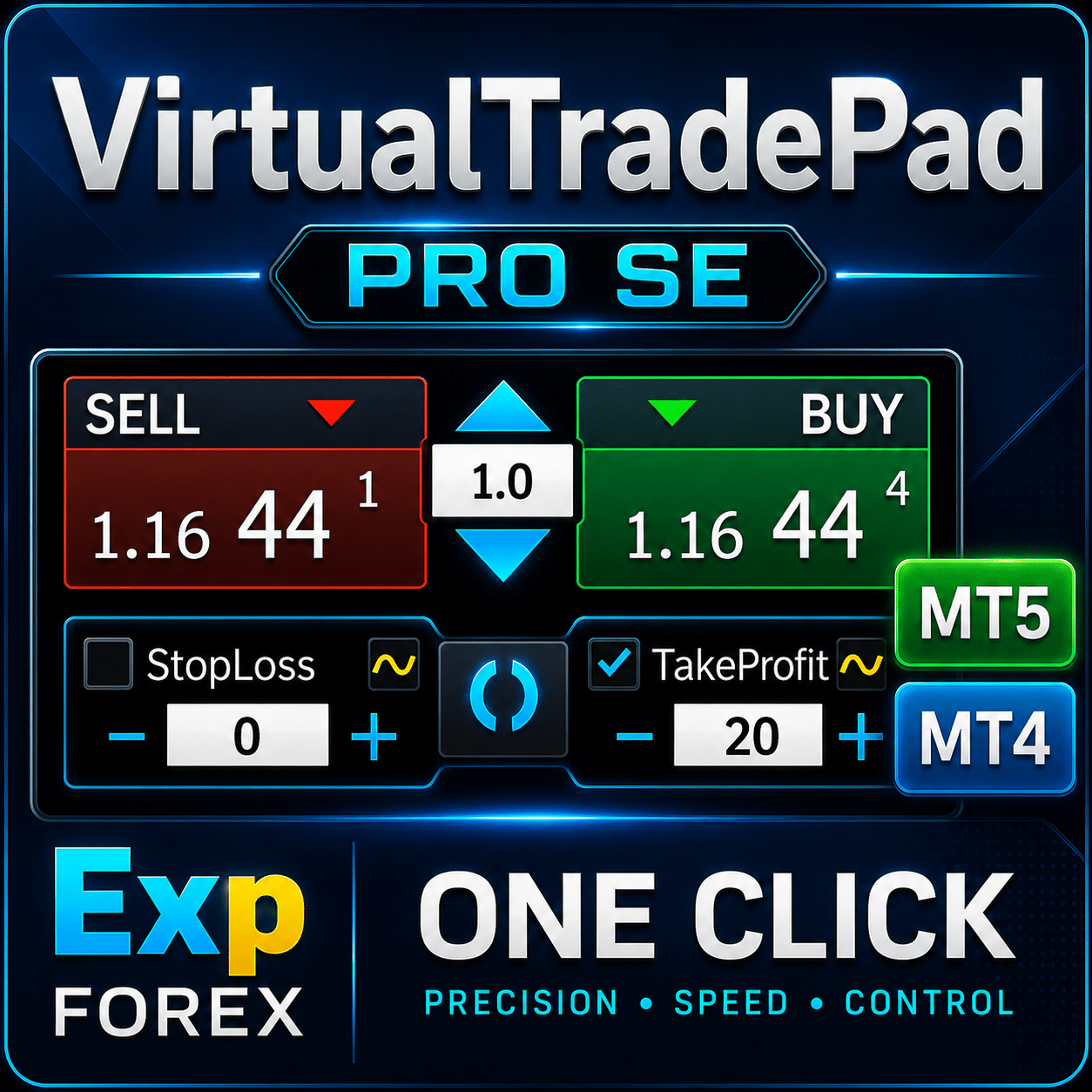
VirtualTradePad PRO SE — Professional MetaTrader Trading Panel for MT4
VirtualTradePad PRO SE is a professional trade-management workspace for MetaTrader 4 and MetaTrader 5. It is designed for traders who…

InfoPad, Online Information Panel for MetaTrader
InfoPad is a highly useful information panel designed to provide crucial information on the specific currency pair selected in the…
Partial Close and Trailing. Partial closing of positions on rollbacks
Partial Close and Trailing is an EA assistant that closes a portion of a position (i.e., part of the lot)…

Templates MQL Open Source. Template for Creating Expert Advisor
Brief Creating Expert Advisors (EAs) to test your strategy using any indicator can indeed be simplified using templates and open-source resources….
EAPADPRO LIBRARY – Adding our panel to your EA
EAPADPRO LIBRARY – Enhancing Your Expert Advisor (EA) with Our Information Panel EAPADPRO LIBRARY offers a robust solution for traders looking…

Market Time Pad. Indicator for MetaTrader with trading sessions
The Time Indicator displays the current time across the major world markets and highlights the active trading session. It is easy…

Trade Report of TickSniper and the best advisors from Expforex
Description We have summed the summary and detailed trading results of our experts TickSniper, Good Santa, Tick Hamster, The X, on our real trading accounts. Trade…

EA The xCustomEA: Universal Trading Advisor for iCustom Indicators. Custom
Universal trading adviser on custom indicators for MetaTrader . Exp – The xCustomEA Universal trading advisor on custom indicators. The xCustomEA works on…
Tester Pad is a Forex trading simulator for strategy tester.
One-click trading on the Strategy Tester chart. The utility allows you to manually test your strategies in the strategy tester….

Extra Report Pad – Trader’s Diary. Professionally analyzes your trading
Extra Report Pad – professional solution for analyzing your trading account Today, it is essential to trade at once for several…

Tick Hamster Automatic trading robot. Nothing extra!
Tick Hamster – Expert Advisor with Automatic Optimization for Any Trading Symbol in MetaTrader Tick Hamster is a fully automated Expert…

SafetyLOCK PRO Protect your positions by locking using the opening
SAFETYLOCK: Secure Your Trades Against Sharp Market Reversals Trading on financial markets involves high risks, particularly during sharp market reversals. SAFETYLOCK…
Bài viết này cũng có sẵn bằng:
Leave a Reply